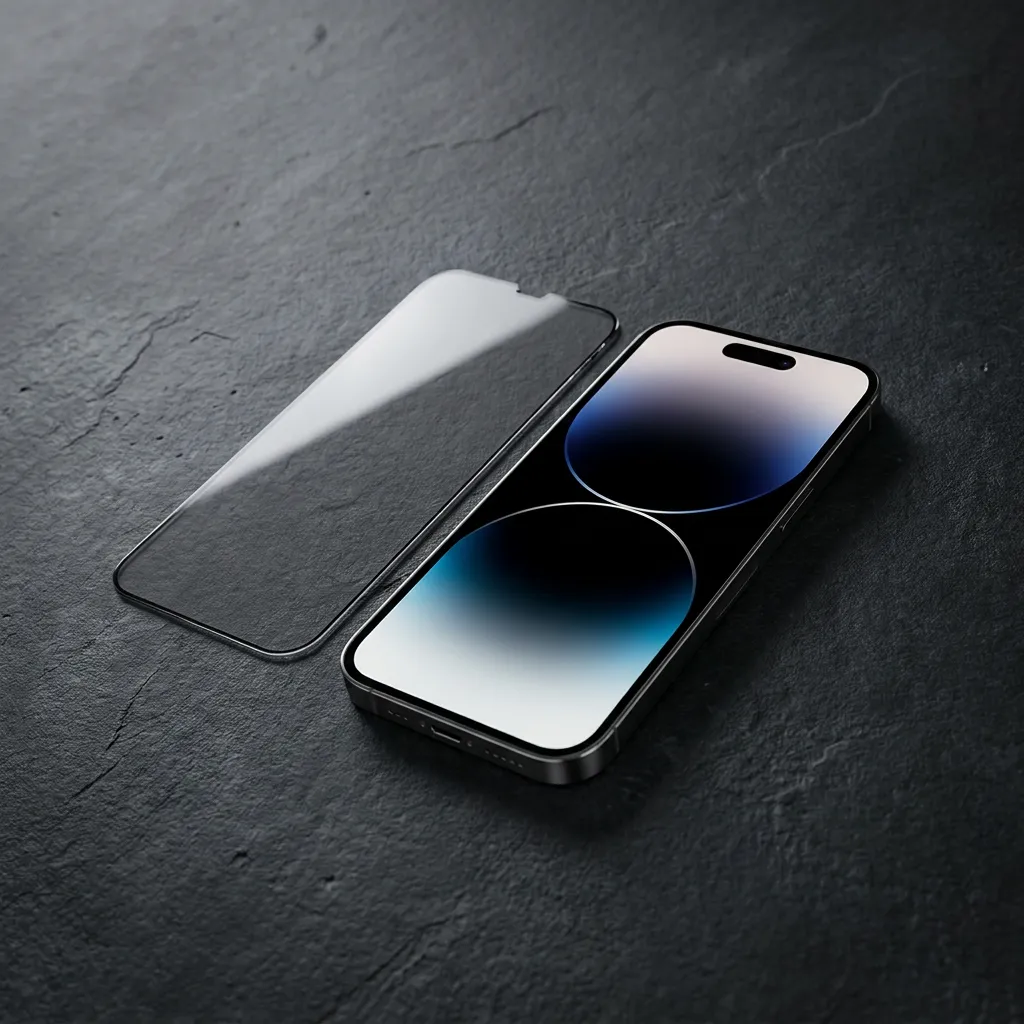
A correctly designed and properly installed screen protector should allow normal phone operation.
However, compatibility problems can occur when the protector covers a sensor, uses an unsuitable material, has excessive thickness, contains bubbles, is misaligned, or was made for a different device model.
The symptoms may include:
The correct solution depends on which sensor or input system is affected.
Face ID uses the phone’s front sensor system to recognize the user’s face.
Apple states that the TrueDepth camera must not be blocked and specifically recommends removing anything that may cover it, including a smudge, case, or screen protector, when Face ID is not working.
A protector may interfere with Face ID when:
Most device-specific protectors are designed around the front camera and sensor layout. Problems are more likely with poorly fitted universal products or incorrect model selection.
Use a clean microfiber cloth to remove fingerprints, oil, or moisture from the top section of the protector.
Inspect the camera, Dynamic Island, notch, and sensor area under bright light.
The protector should sit evenly around the screen. A black border or cutout should not overlap the active sensor area.
Some cases push against the protector and shift it upward. Test Face ID without the case.
Restarting can eliminate a temporary software problem.
When the previous steps fail, removing the protector is the clearest diagnostic test.
If Face ID immediately returns to normal, the protector was misaligned, contaminated, damaged, or incompatible.
Yes, especially when the phone uses an optical or ultrasonic fingerprint sensor beneath the display.
The protector adds another layer between the finger and the sensor. Performance depends on the sensor type, protector material, adhesive, thickness, and installation quality.
Samsung states that a properly designed screen protector should work with compatible fingerprint sensors and recommends using an approved or manufacturer-recommended protector.
Common causes of poor fingerprint recognition include:
Ultrasonic sensors can be sensitive to the protector’s density and bonding. Optical sensors depend on a clear and consistent view of the fingerprint.
A product labeled “tempered glass” is not automatically compatible with every in-display sensor.
Delete the stored fingerprint and register it again after installing the protector.
The phone can then record the fingerprint through the installed glass or film.
Some devices allow multiple fingerprint profiles. Registering the most frequently used finger again from slightly different angles may improve recognition.
Some Android phones include a setting designed to improve touch response when a protector is installed.
Samsung advises enabling Touch sensitivity under Display settings when taps and touches are affected by a protector.
The exact menu name varies by phone model.
Follow the phone’s fingerprint registration prompts carefully. Place the finger flat enough to cover the recognition area.
Oil, water, dust, and lotion can interfere with fingerprint recognition. Clean the protector and dry your finger before testing.
A crack, deep scratch, bubble, or lifted area above the sensor may reduce consistency.
A screen protector can affect touch response, although severe problems usually indicate poor installation or incompatibility.
Capacitive touchscreens detect changes in the electrical field created when a finger approaches the surface. A properly designed protector is thin enough to preserve normal operation.
Problems may occur because of:
A phone may still respond in the center while missing taps near the corners or keyboard edges.
Use a structured test rather than relying on a single missed tap.
Open a notes application and type every letter on the keyboard several times.
Look for letters that are consistently missed.
Drag an application icon slowly around the perimeter of the screen.
If the icon repeatedly drops in the same location, that area may have reduced sensitivity.
Scroll slowly through a webpage with one finger. Watch for sudden stops or jumps.
Open a photo and test pinch-to-zoom. A poor protector or installation may cause one contact point to disconnect.
A tight case can push the protector upward and create edge problems.
Moisture, gloves, lotion, and extremely dry skin can change touch behavior.
Privacy technology is mainly designed to control the visible viewing angle of the display.
Face ID should continue working when the protector is designed for the exact device and does not interfere with the TrueDepth system.
Potential problems come from:
Privacy strength alone does not determine Face ID compatibility. Device-specific engineering and installation accuracy matter more.
An AR coating is an optical surface treatment used to reduce reflections. It should not independently disable Face ID or normal touch input.
Compatibility still depends on the complete protector structure:
The phrase “AR screen protector” describes an optical function. It does not guarantee that every protector is compatible with every sensor system.
Even a compatible product can perform poorly when installed incorrectly.
A small particle near the front camera may create haze or scatter light.
An unbonded area can create inconsistent touch input or fingerprint recognition.
A protector positioned only slightly too high may overlap a front sensor or conflict with the case.
A tight case may lift the protector and create a small air gap.
Some installation systems include a temporary top film. Leaving it attached can make the surface feel less responsive or visually cloudy.
When Face ID, fingerprint unlock, or touch response changes after installation, follow this order:
This process separates installation issues from hardware or software problems.
Before buying, confirm:
Avoid choosing by screen size alone. Two phones with similar dimensions may use different camera, speaker, edge, and sensor layouts.
Usually, no. Face ID should continue working with a compatible and correctly aligned protector.
Clean the sensor area and check alignment before resetting Face ID.
Yes, when an in-display fingerprint sensor becomes less reliable after installation. Registering the fingerprint through the installed protector may improve recognition.
Thickness is only one factor. Glass quality, tempering, adhesive, edge design, fit, and impact direction also matter.
Excessive thickness may reduce compatibility with some fingerprint sensors or cases.
Stacking protectors is not recommended. It can reduce clarity, brightness, touch response, adhesive performance, and fingerprint recognition.
The case may be pressing against the protector’s border and causing edge lifting. Use a case-friendly protector or a case with more clearance.
A small bubble near the edge may have little effect. A large air gap or bubble in an active touch or fingerprint area can reduce consistency.
A screen protector should protect the display without making the phone difficult to use.
When Face ID, fingerprint recognition, or touch sensitivity changes after installation, do not immediately assume the phone is defective. Check alignment, sensor clearance, adhesive contact, device model, and case pressure first.
Choosing a device-specific protector with a controlled installation system reduces the likelihood of dust, misalignment, and uneven adhesion.
Explore LUSA DESIGN screen protectors for AR viewing, privacy protection, clear touch response, and device-specific installation.